 Hit the Road Dude AIONE PHOTO. YOUR PRIVATE PROPERTY.
To make a Hit the Road Dude AI video here, choose one clear photo, sign in, review the format and credit cost, then start creation. The prepared scene puts your character at a white pickup window beside a pond, with newly generated English dialogue. You do not need to write a prompt, find a CapCut template or upload the original video.
Watch the real dog example below before deciding whether this style is the same kind of remake you want. The enabled format and required credits appear in Step 3 and in the live creator.
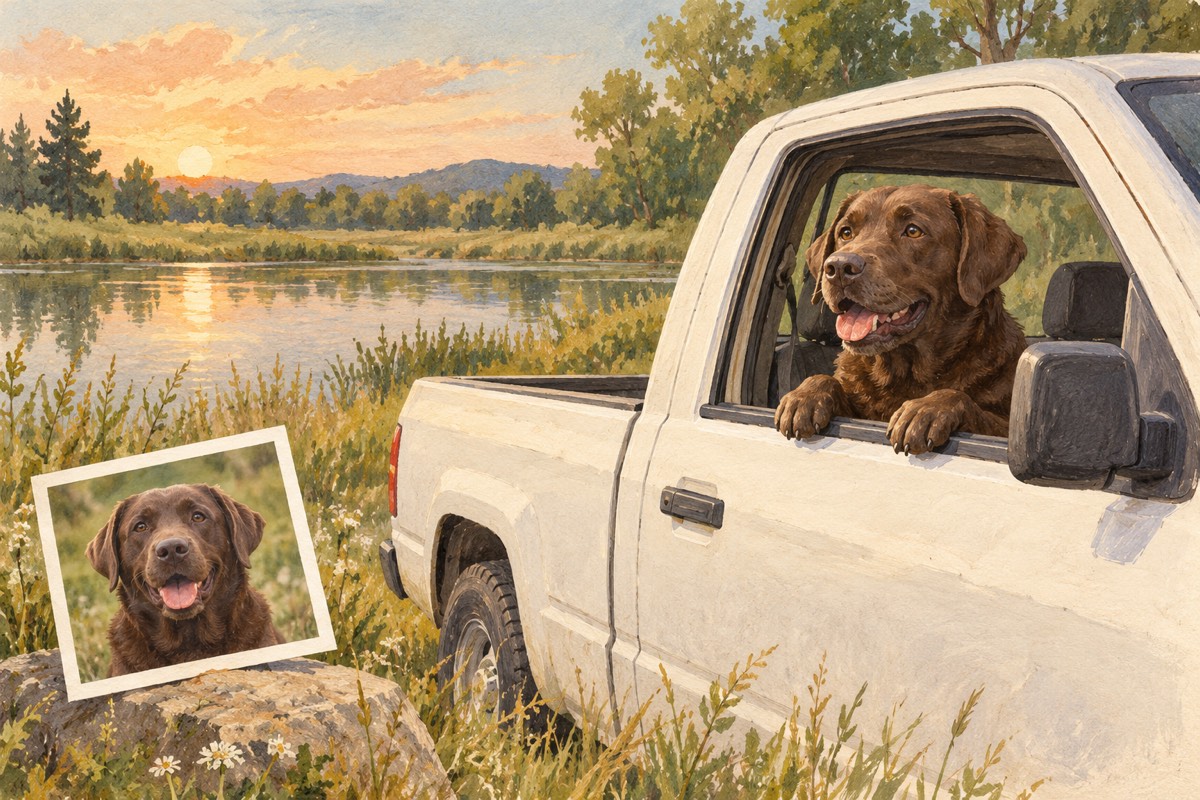
Cover: original AI-generated editorial illustration. It is not a product result. The photograph and video below are the actual example.
First, compare one real photo with its result
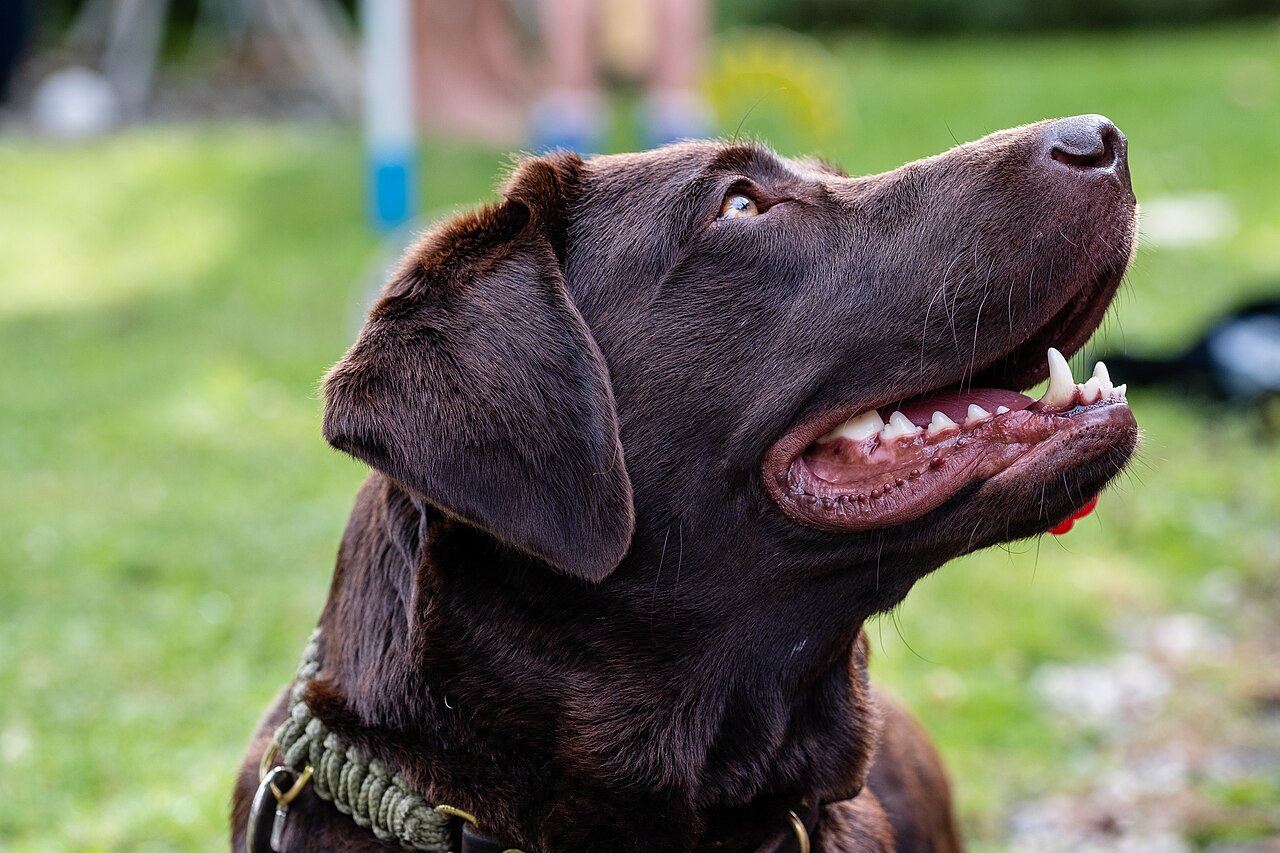
Input photograph: Dktue, Portrait of a labrador retriever, Wikimedia Commons, CC0. It is an ordinary dog portrait; there was no pickup in the source photo.
Open or save the complete sample MP4. Play it with sound to judge the voices, pauses and muzzle movement yourself.
This accepted Labrador example is about 12.06 seconds and 496 × 864 pixels. The requested format and actual encoded dimensions differ slightly. It demonstrates one dog result, not a guaranteed outcome for every photo. Portraits, cats and the later generalized script still need separate result checks; exact dialogue and word-perfect lip sync have not been established by this sample.
Choose the kind of remake you actually want
“Make the same video” can mean three different things:
| Your goal | The workflow to look for |
|---|---|
| A new pickup scene with your character and new speech | A photo plus a prepared scene or prompt; this is the approach here |
| The same movement and timing as a particular clip | A compatible reference-video or motion workflow |
| The exact original recording in the finished file | An audio workflow that explicitly supplies that recording with appropriate permission |
A truck-scene prompt alone does not establish the second or third outcome. Media.io's guide also distinguishes a concept remake from reference-driven motion and speech support. For a broader decision, read the tools and methods comparison.
Step 1: prepare one suitable photo
Choose a JPG, PNG or WebP up to 10 MB. Use one person or one pet, with eyes, mouth or muzzle, ears and distinctive hair or fur visible. Leave enough space around the head to see its shape. A sharp portrait gives you clearer features to compare later than a distant action shot.
You do not need to remove the background or put the subject in a real vehicle. The scene is generated separately. Crop a group photograph to one character before selecting it; the current format does not offer multiple speaking characters.
For a pet, first decide which features make it yours: the muzzle shape, ear shape, coat color, a chest patch or a collar. The pet guide turns those into a practical review checklist.
Step 2: choose your photo and sign in
Open the creator and select your photo. Choosing it makes a local browser preview. That preview is your input, not a newly generated video, and it does not change the published Labrador example.
Sign in to create. When you start creation with enough credits, the photo uploads to private storage and becomes available to the video provider for that task. Upload a photo you own or have permission to use.
Step 3: review the format and complete credit offer
Check the current format, required credits, your balance and the available one-time packs before starting. These facts come from the same catalogue as the creator:
The displayed duration describes the finished clip, not a generation-time promise. Watching the example and choosing a local photo preview are free; generation uses credits. If checkout visibly says Stripe TEST, follow its test-mode instructions. That label concerns checkout, while submitting a video still runs real AI processing.
Step 4: create once and follow the task
Select Create video after reviewing the offer. The prepared English scene and dialogue are already supplied. This version has no custom prompt box, voice selector or custom-language setting.
Follow the task status. If you reload, sign in to the same account and inspect the existing task or My videos before submitting again. A pending task, a confirmed failed render and a completed video with a delivery problem are different states; repeated creation can start additional paid work.
Step 5: inspect the full result with sound
Use this order so an attractive opening frame does not hide a weak ending:
| Check | What to inspect |
|---|---|
| Character | Compare the first frame, a head turn and the ending with the photo |
| Scene | The character stays seated at the open pickup window, with believable door contact |
| Speaking turns | Listen for the visitor, then the character's response; watch whether the visible mouth moves at the intended times |
| Reaction | The disbelief and send-off remain readable rather than rushing together |
| Anatomy | Follow the moving hand or paw through the gesture, including where it returns |
| File | Play the downloaded MP4 as well as the on-page preview |
These are acceptance checks, not claims that every render passes. For the audio distinctions, use the sound and lip-sync guide. For a stuck task or an unexpected result, use troubleshooting.
Step 6: download, then prepare your post
Use Download MP4 on a successful personal result. Keep a copy before editing. This tool supplies a file for manual sharing; it does not publish to your TikTok account.
Listen before adding another sound, because the file already contains generated audio. Check your caption placement against the face and paw. Follow the phone download and TikTok guide for the publishing steps.
Quick answers before you start
Can I use a selfie or a cat photo?
Both are accepted input types, but the published evidence is one Labrador result. They have not received the same separate example check, so judge the uncertainty before spending credits.
Will it preserve the original voice or exact performance?
This first version makes new video and new English audio. It does not insert your face into the original footage or clone its speaker. Exact wording, gestures and lip sync can vary.
Do I need the viral prompt?
No prompt is required in this creator. If you want to understand the scene or use a compatible DIY tool, see the tested-dog prompt breakdown.
What if I only remember “State Property” or “Private Property”?
Those phrases help identify the same meme family. See the origin and alias explanation, then return here for the actual making steps.